Lab 2.8 - Recover from committing the wrong metadata
Level: 2 Contributor advanced
Time: ~20 min
You will: deliberately over-select at publish time, see what that does to a Pull Request, and learn the two recovery paths.
The situation
It is late, the Metadata Retriever has ninety rows, and the tick box in the header selects all of them in one click. You take it, you retrieve, you commit, you publish, and your Pull Request now proposes to change eighty things you have never looked at.
Nobody can review that. Worse, some of those eighty are other people's work as it existed in your org before you refreshed, which means merging your Pull Request would quietly roll them back.
This lab is short and it is the one you will actually use.
Before you start
- Lab 2.7 finished and merged
- Nothing waiting in the Source Control panel that you still care about
Steps
1. Make the mess on purpose
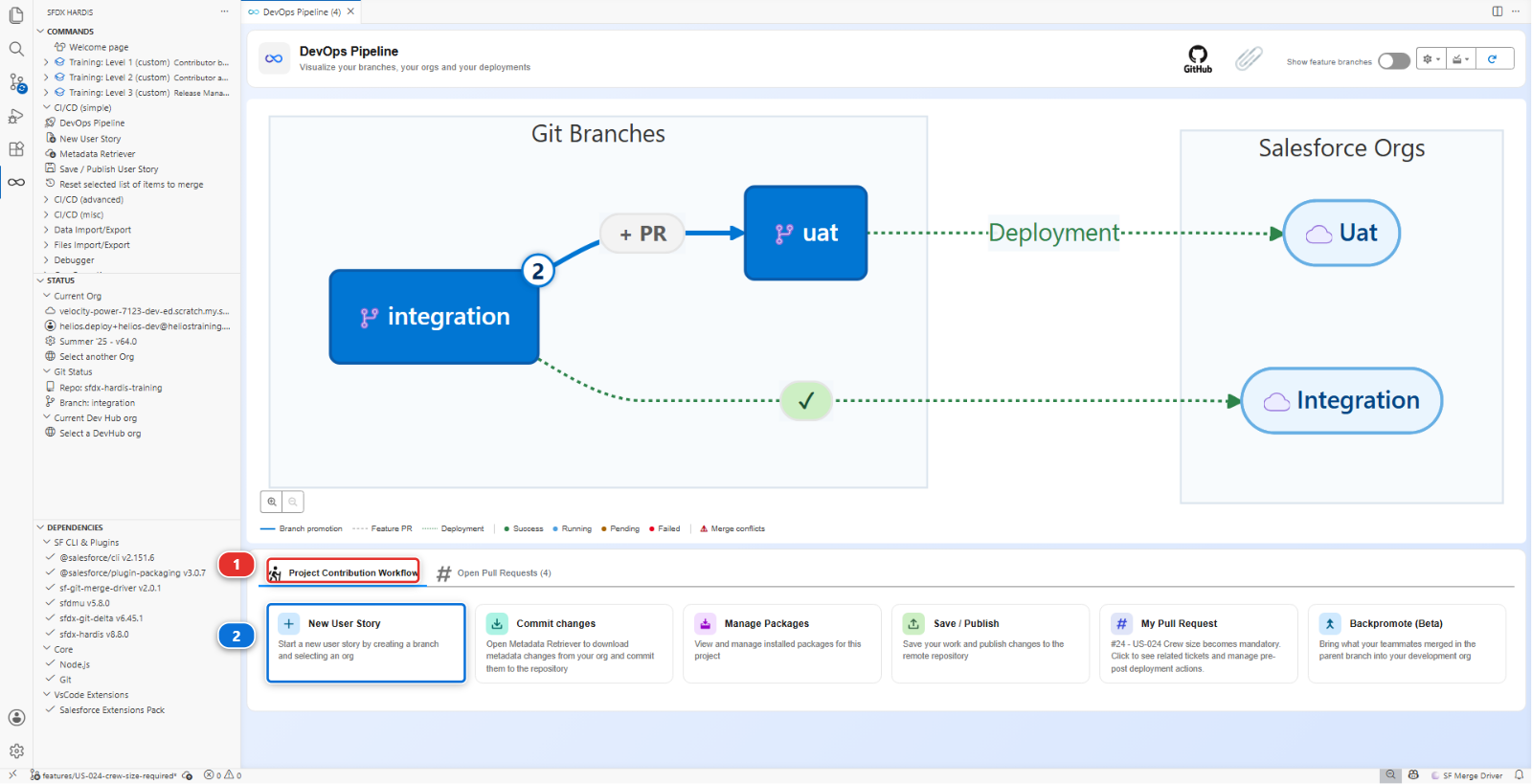
New User Story (2), under Project Contribution Workflow (1) of the DevOps Pipeline
panel. Name US-038-installation-notes-tidy, org helios-dev.
In helios-dev, make one small real change: on the Installation layout, move Crew Size above
Install Date.
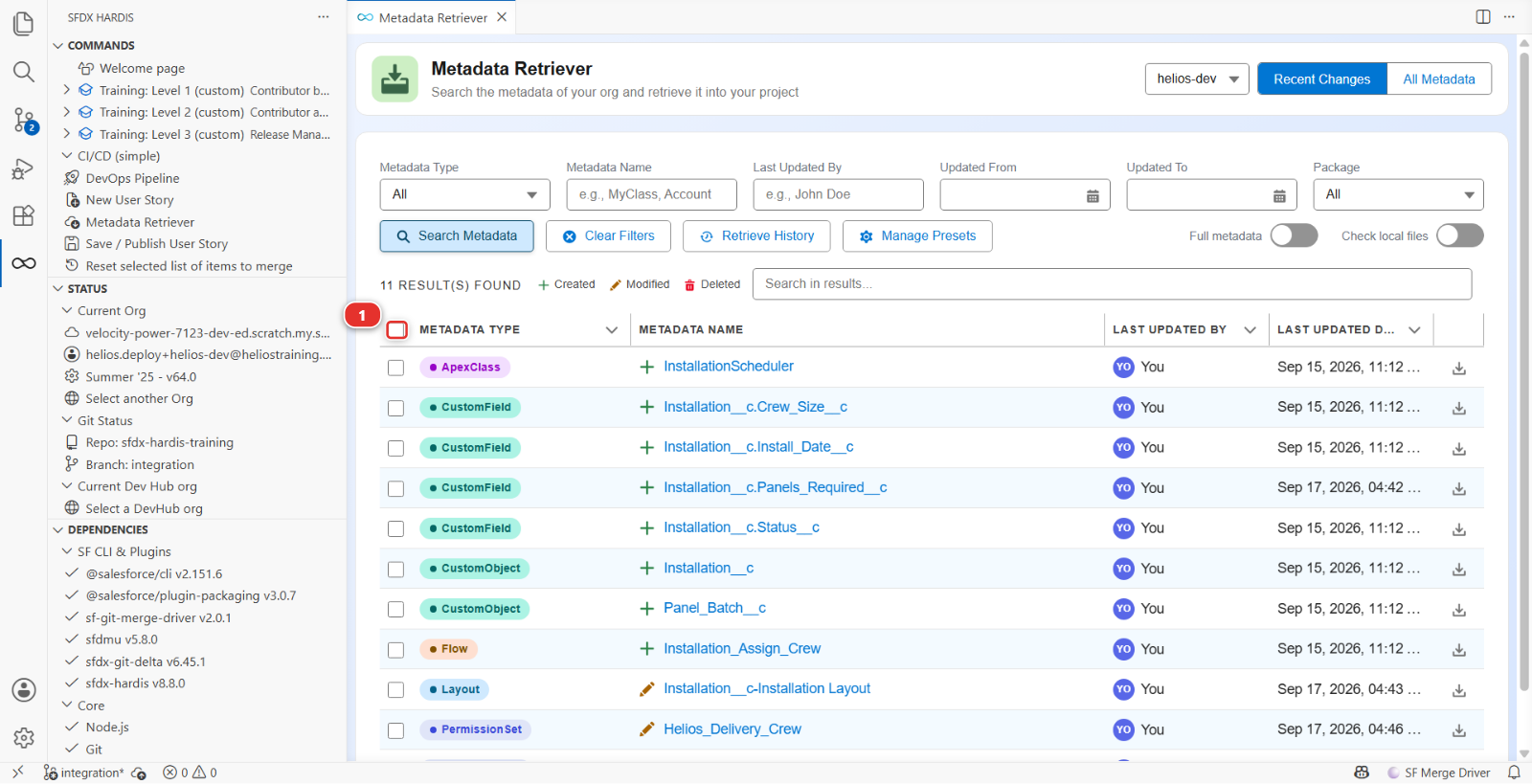
Now open Commit changes, search the recent changes, and this time click the tick box in the table header (1), which selects every row at once. Retrieve them all, commit them all from Source Control, publish and push.
2. Look at what you did
Look at the Git Delta package.xml report the publish offered: more than the one layout your story changed. Open the Pull Request and read the diff.
At the very least there is a Profile, Admin, the System Administrator profile. The repository
carries it short, a few lines, and it came back thousands of lines long: every field you created in
Setup since Level 1 gave that profile field-level security, and a whole-org retrieve brings all of
it along. What else comes depends on what your org went through, and
a whole-org retrieve on a real project usually carries some of it:
- a list view left over from an earlier story, still in your org, or a transaction security policy Salesforce created on its own
- Apex and LWC files that differ by nothing but their last line break: Salesforce drops it, the repository keeps it
- a field whose description now reads
'where it read': the same text, spelled differently
None of it is your story, and some of it would travel to every org. And when your org is behind
integration, which it is whenever a teammate merged since your last backpromote, the same retrieve
brings their components back as they were before: the diff then reads as deletions, and merging
it undoes their work. That is the real damage: an over-wide selection adds noise, and it can
propose to undo work.
3. Recover: reset the selection
Everything else in this course is a card in a panel. This one is not: it has no card, and the only way to reach it is the SFDX HARDIS view in the left bar, which lists every sfdx-hardis command whether or not a panel exposes it.
Open it, then CI/CD (simple) (1), then Reset selected list of items to merge (2).
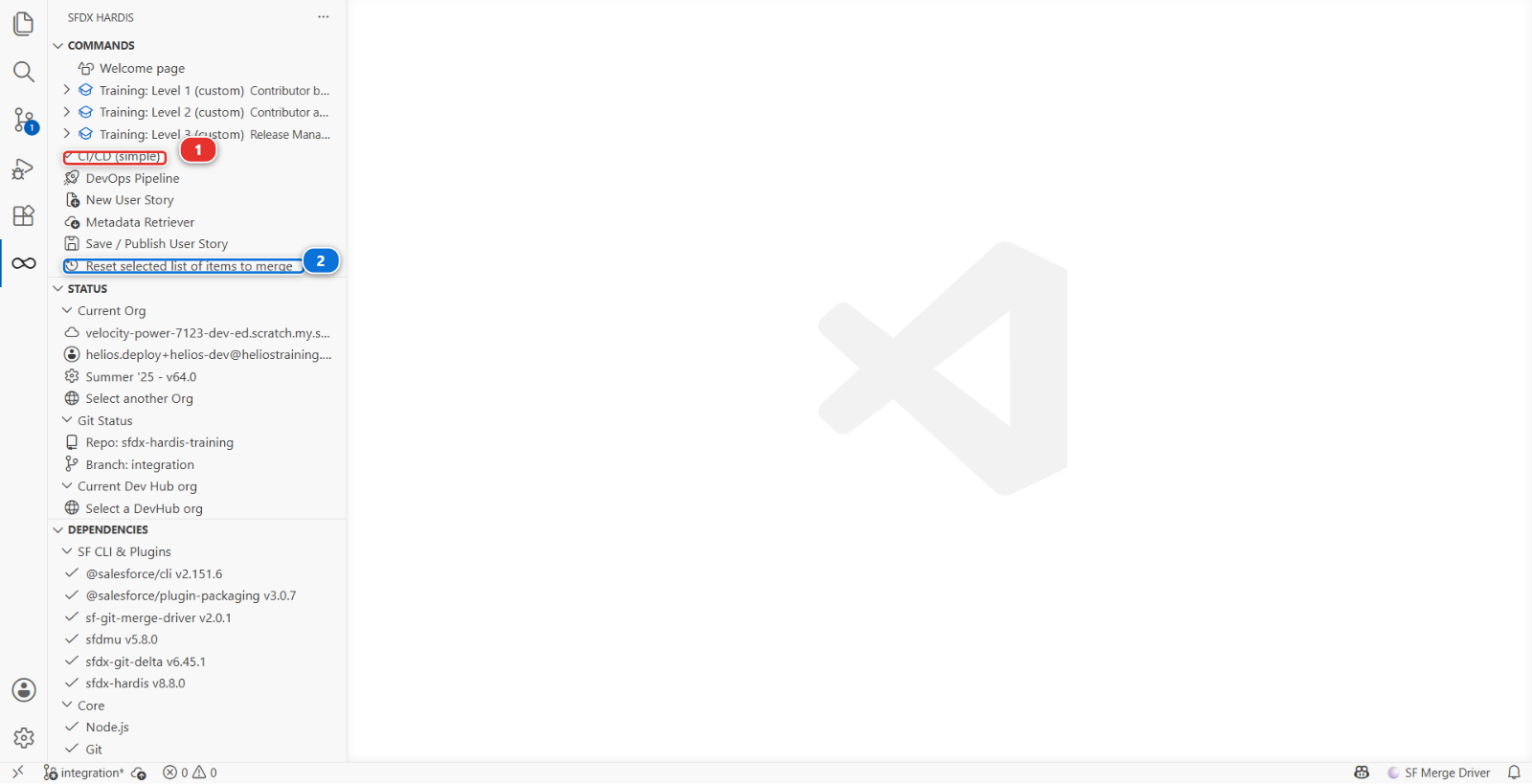
It does more than its name suggests, and knowing exactly what saves you from undoing it twice. In one pass it:
- Undoes every commit your branch has made since it left
integration, without touching a single file. The commits go, your changes stay, in front of you, as if you had never published - Clears what was queued for the next commit, so nothing is waiting
- Restores
manifest/package.xmlandmanifest/destructiveChanges.xmlto the versions on the branch point, which is what actually clears the selection - Marks your branch as safe to overwrite on GitHub, because what you have locally no longer matches what you pushed
It asks you to confirm the reset first, and it refuses outright if you are standing on the branch you were going to merge into.
So after this one command, the over-wide commit is gone and the layout move is back in front of you, uncommitted, in the Source Control panel. Nothing of yours is lost: the change is in Salesforce, and the file is still on your disk.
4. Deal with what you already pushed
Locally you are clean. The branch on GitHub is not: it still carries the over-wide commit, because the reset only changed the copy on your machine.
Nobody has reviewed it (the normal case): push the corrected branch over it once you have re-published in the next step. That is what the reset authorised, and the publish will offer it. The mistake disappears from the history as though it never happened, which on your own feature branch before review is exactly what you want.
Somebody has already reviewed it, or the branch is shared: do not force push. Rewriting history under a reviewer is how a review comment ends up attached to a commit that no longer exists. Commit the corrected state as a new commit instead, so the diff shows the mistake and its correction, both visible.
Force pushing is for a branch only you have touched
The rule is not about git, it is about people. Ask one question: has anyone else pulled this branch, or commented on it? If yes, the history is shared and you add to it. If no, it is yours and you can tidy it.
5. Publish again, properly
Everything the retrieve brought down is still in your files, uncommitted. In the Source Control panel, stage one file only, the layout. Commit it, then discard the rest: right-click Changes, Discard All Changes.
Then Save / Publish (1) again.
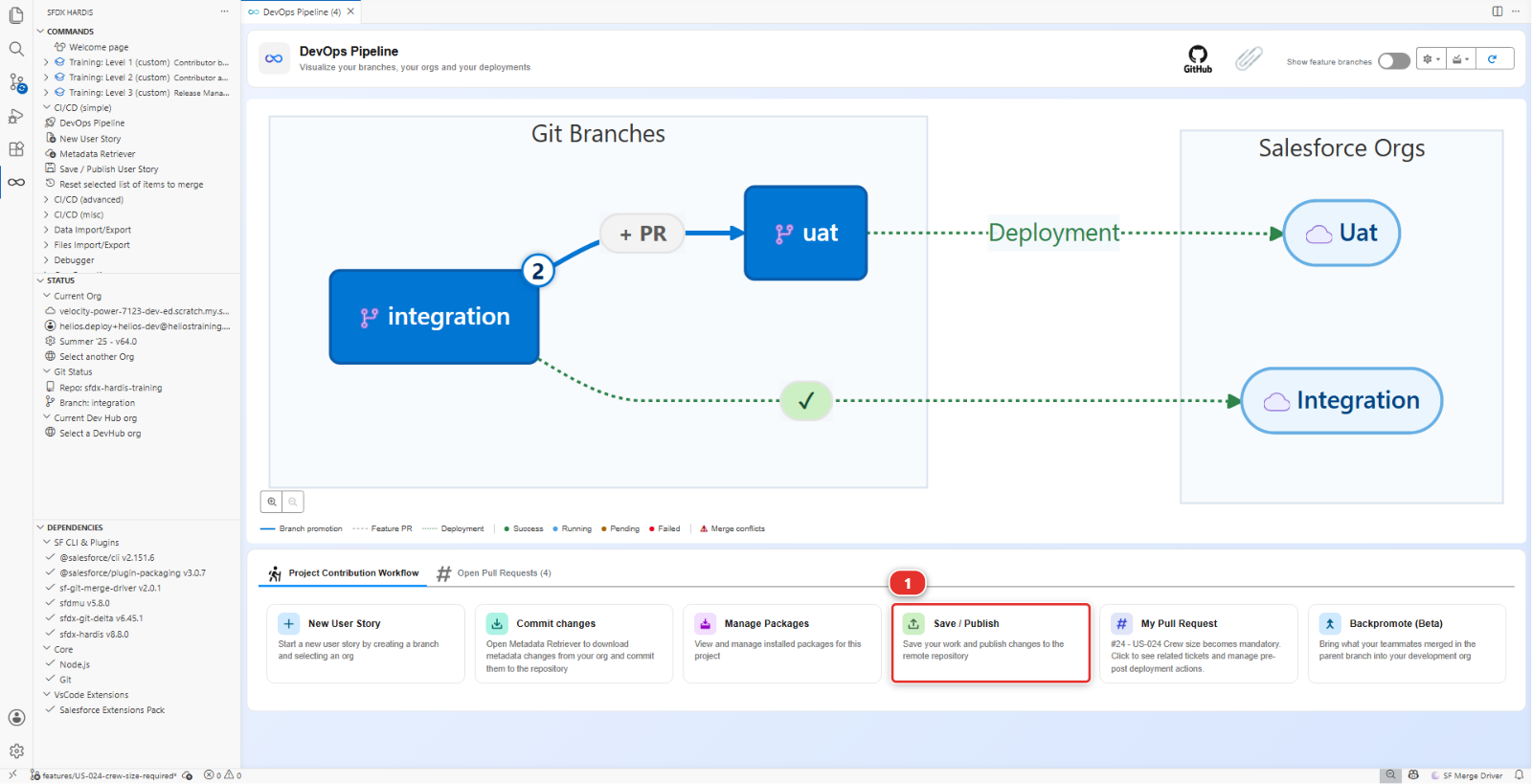
The Git Delta package.xml report now names one component, the layout, and the publish pushes over the old branch without asking: the reset authorised it. The Pull Request now shows one file, your layout.
6. The habit that prevents this
Three checks, each about ten seconds, before every push:
- Read the Git Delta package.xml report. If it has entries you cannot explain, stop
- Count the files in the Source Control panel. A one-field story is two to four files. Eighty is never right
- Skim the diff for deletions. Additions are usually yours. Deletions are usually somebody else's
Under the hood: what "the selection" actually is
The command behind the menu entry is:
sf hardis:work:resetselection
There is no list of ticked items stored anywhere. Your selection is your commits. What you chose
in the Metadata Retriever became files, the files you committed became the branch, and
hardis:work:save works out the delta from the git diff between that branch and the target branch,
and adds it to manifest/package.xml. Select too much and the diff is too wide, because the diff is all there is.
That is why the fix has to touch git, and why this command does exactly three things:
git reset --soft <branch point>            undo the commits, keep every file
git checkout <branch point> -- manifest/   put package.xml back as it was
setConfig('user', { canForcePush: true })  authorize the next push to rewrite the branch
Nothing touches your org, and nothing touches your files.
The reason an over-wide selection produces deletions is worth stating plainly. If your org is behind
integration and you retrieve everything from it, the retrieved files are older than what is on
integration, and the diff reads as "remove what they added". A backpromote before starting
(Lab 2.1) is what prevents that.
What you should see
- The Git Delta package.xml report naming a single
Layout - A Pull Request diff of one file: the layout
- Your layout change still present in
helios-dev
If it goes wrong
The reset says you have changes waiting. Publish them or discard them in the Source Control panel first, then run the reset again.
After the new publish, the Git Delta report still names several components. You committed more than the layout after the reset. Everything the retrieve brought down is still in your files, and only what you commit goes into the package: reset again, and stage one file.
You already merged the bad Pull Request.
Revert it on integration with the Revert button GitHub offers on a merged Pull Request, then
redo the story properly. Do not try to fix integration by hand.
Check your work
Welcome page > Training: Level 2 > Check my work, then pick Lab 2.8.
Go deeper
Next: Lab 2.9 - Capstone: deliver a User Story that has it all