Lab 1.6 - Open a Pull Request, pass the deployment check, merge
Level: 1 Contributor basics
Time: ~20 min
You will: have a robot check your work before a human does, read what it says, and put US-014 into the shared integration org.
The situation
Your branch is on GitHub. Now you ask for it to be merged, and something interesting happens: before anybody looks at it, a job takes your changes and rehearses the deployment into the integration org. Salesforce compiles everything and runs the tests, then throws the result away rather than keeping it, so the org is left exactly as it was. The job also runs the linters, and writes the whole verdict back on the Pull Request.
That is the whole point of this way of working. You find out your deployment fails while it is still yours to fix, not on release night.
Pull Request, in one sentence
A Pull Request asks for one branch to be folded into another, yours into integration here. It
is a page on GitHub holding three things: what your branch changes, the result of every check
that ran on it, and the conversation about whether it should go in. Nothing moves until somebody
clicks Merge. Everyone shortens it to "PR".
Before you start
- Lab 1.5 finished: the branch is pushed to your fork (your own copy of the course repository on GitHub, for example
github.com/my-username/sfdx-hardis-training) - Lab 1.2 finished: Set up my training environment turned Actions on and set the CI credential
Steps
1. Open the Pull Request
Go back to the panel where Save / Publish finished in Lab 1.5. Along the bottom is a bar of actions, and the first one is Create Pull Request (1). Click it: the extension opens GitHub on the right page, with base and head already filled in.
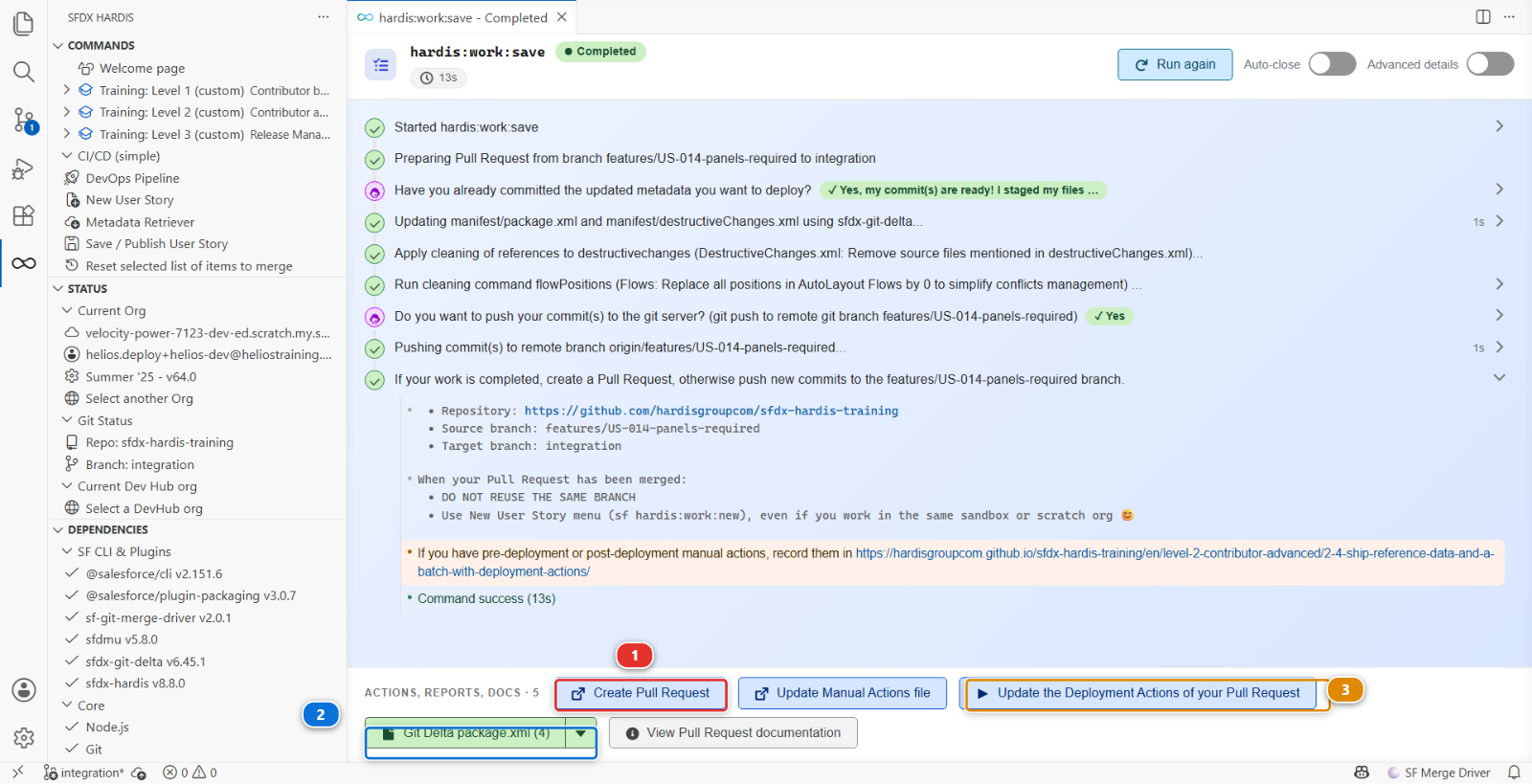
Two other things in that bar are worth knowing now, because later labs use them. (2) is the
package.xml the command generated, the one you read in Lab 1.5 step 6. (3) opens the Deployment
Actions of this Pull Request, which is what the whole of Lab 2.3 is about.
If you closed that panel
Nothing is lost. Open your fork (github.com/my-username/sfdx-hardis-training) on GitHub: it shows a banner offering to open a Pull Request
for the branch you just pushed. The + PR pill you may have noticed in the DevOps Pipeline
diagram is for major branches, not for your feature branch.
Check two things before clicking, every single time:
- base is
integration, in your fork - compare is
features/US-014-panels-required
Check the base repository
GitHub defaults the base of a fork's Pull Request to the original repository. If the base
says hardisgroupcom/sfdx-hardis-training, click it and change it to your own fork. A Pull
Request opened upstream cannot reach your org, will never turn green, and adds noise to a
repository a few hundred other learners are using.
The title reads Features/us 014 panels required: GitHub makes it up from the branch name
whenever a branch carries more than one commit, and yours carries two, the one you wrote and the
one Save / Publish added. Replace it with the first line of your commit message,
US-014 Panels Required on Installation, and paste the rest of that message into the
description. It is what the reviewer reads first. Click Create pull request.
2. Watch the checks run
Open the Checks tab (1). Two of them matter here, and both start on their own:
| Check | What it does |
|---|---|
| Simulate Deployment (sfdx-hardis) (3) | Deploys your metadata into helios-integration in validation mode, and runs the Apex tests |
| Mega-Linter (2) | Runs the code quality linters over the repository |
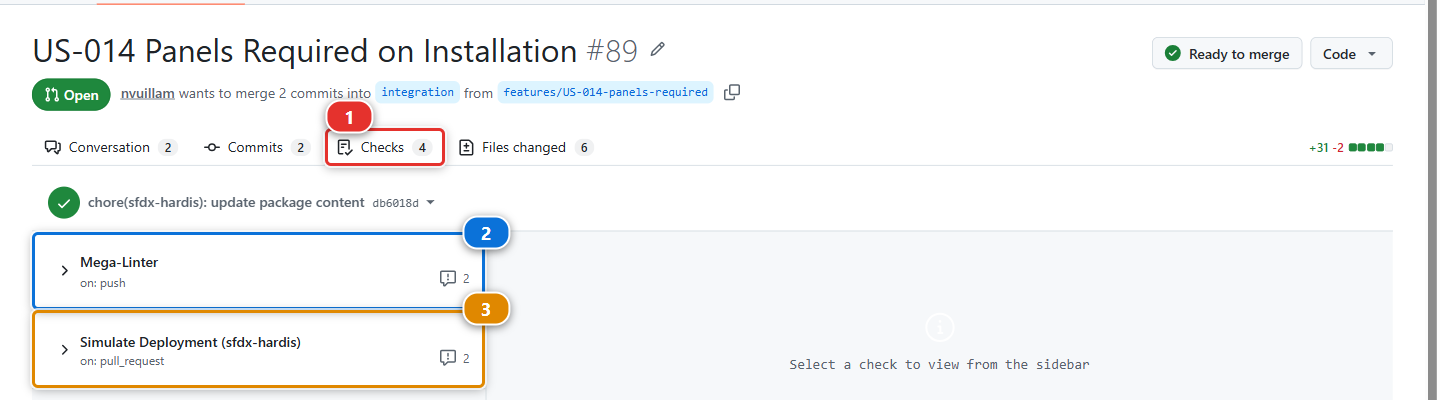
Click either one to read its log while it runs. The deployment check takes about two minutes, and you can watch it authenticate with your secret, work out what changed, and start the deployment.
3. Read the sfdx-hardis comment
When the deployment check finishes, sfdx-hardis writes a comment on the Conversation tab. It is the most useful thing on the page.
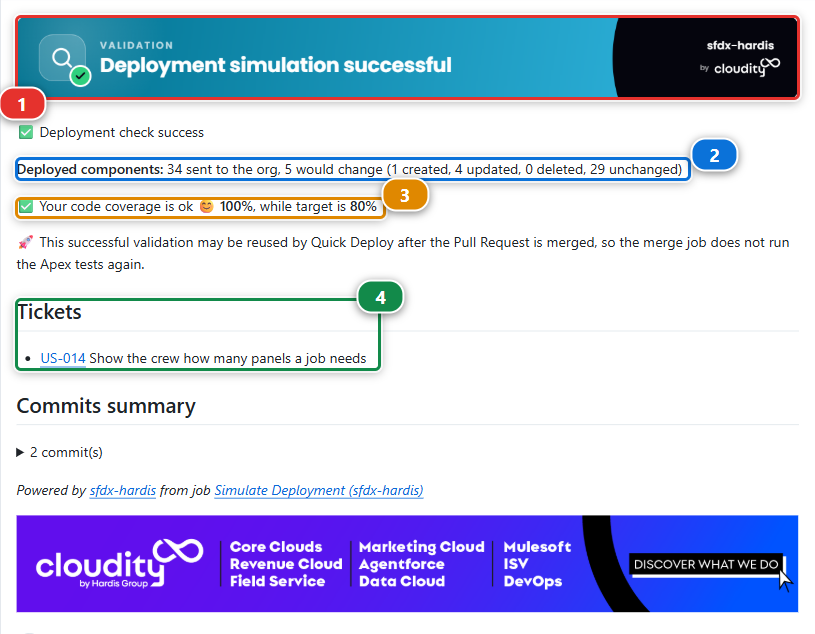
- The banner (1) says whether the simulated deployment succeeded
- What would change (2). Not a list of your files: sfdx-hardis sends the whole package,
manifest/package.xml, and Salesforce answers how much of it differs:34 sent to the org, 5 would change (1 created, 4 updated, 0 deleted, 29 unchanged). The one created is your field, and the updated ones include the layout and the two permission sets you changed - Apex coverage (3), against the target this project sets
- Tickets (4), the stories it recognised in your branch name and commit messages, each with its title and a link to its page in the backlog
Below those, a summary of your commits and the name of the job that wrote the comment.
Under the hood: where the story titles come from
The course has no ticketing tool: its backlog is the ticketing system. config/.sfdx-hardis.yml
declares it with three keys of the generic ticketing provider:
genericTicketingProviderRegex: "(US-[0-9]{3})"findsUS-014in the branch name and the commitsgenericTicketingProviderUrlBuilderturns it into the link,.../BACKLOG/US-014/genericTicketingProviderDetailsUrlBuilderpoints at.../BACKLOG/US-014.json, a small file the course site publishes for each story. sfdx-hardis reads itssubjectand writes it next to the link
A real project points these keys at its own ticketing tool, or uses the JIRA, Azure Boards or ServiceNow connector instead.
Your counts may differ by one or two
The picture is a real comment from a real run of this lab, kept as it came out. A component Salesforce stores slightly differently in your org can move from unchanged to updated, and that is not a problem: what matters is that your field is the one created.
4. Merge
Both checks green, the comment says success. Back on the Conversation tab, scroll to the bottom: the merge box says All checks have passed and No conflicts with base branch, and the button is live.
It is live because both are green. Setting up your environment in Lab 1.2 protected integration:
while a check is running or red, the box reads Merging is blocked and the button stays grey, for
you as for anybody else. That is the rule of every real pipeline, and here GitHub enforces it rather
than trusting everybody to read the checks first.
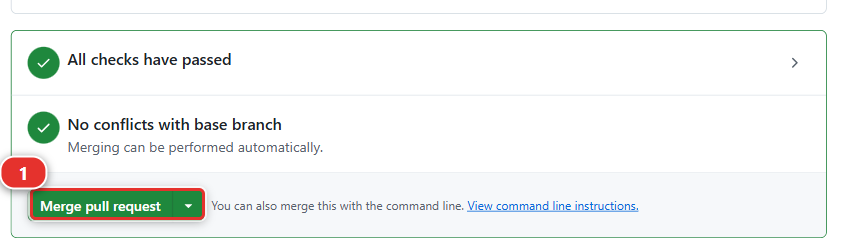
The green button has a small arrow on its right (1). Click the arrow, choose Squash and merge (2), then click Squash and merge and Confirm squash and merge.
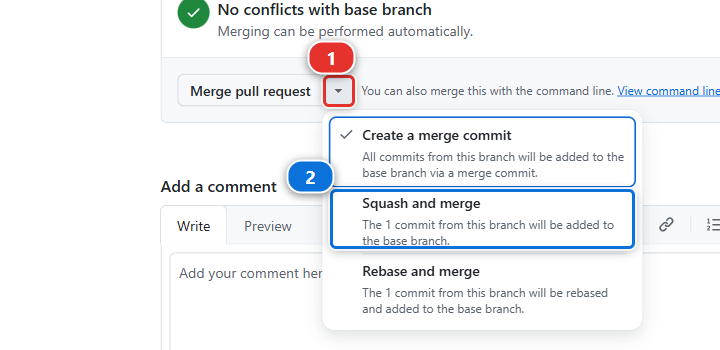
Squash turns the commits of your branch into a single commit on integration, titled like your
Pull Request. The story shows as one line in the history of integration instead of every
intermediate commit you made while building it, and one line is what the release manager reads
when they promote.
Squash is for feature Pull Requests, and for nothing else
Squash and merge is right in exactly one case: a Pull Request from a feature branch, a
User Story or a fix, into its major branch. Everywhere else, use the plain Merge pull
request: a retrofit, a promotion branch, and every Pull Request from one major branch to the
next (integration to uat, uat to preprod, preprod to main). Those merges must keep
the commits as they are, because the next promotion and the next retrofit compare branches
commit by commit, and a squash there makes git believe the work was never merged. Level 3 comes
back to this.
GitHub remembers the method you picked last, so check the button label before every merge.
Then delete the branch. GitHub offers a button for it. A merged branch that stays around is one more thing in everyone's list for no benefit.
What the linter is for, since it had nothing to say
MegaLinter reads the whole repository, not only your change, and reports anything that breaks
the project's quality rules. It found nothing here because this repository is clean. When it
does find something, it writes it on the Pull Request the same way the deployment check does,
and whether a finding fails the job is a choice the project makes in .mega-linter.yml. A job that
fails blocks the merge, like the deployment check.
Level 2 has a lab where one blocks you, on purpose.
5. Watch the real deployment
Merging into integration starts a second job, and this one is not a check: it deploys for real.
Go to the Actions tab (1) of your fork (github.com/my-username/sfdx-hardis-training). The merge started two runs on integration: the
one to watch is Process Deployment (sfdx-hardis) (2), and it takes about three minutes.
The other, Mega-Linter, checks the code again after the merge.
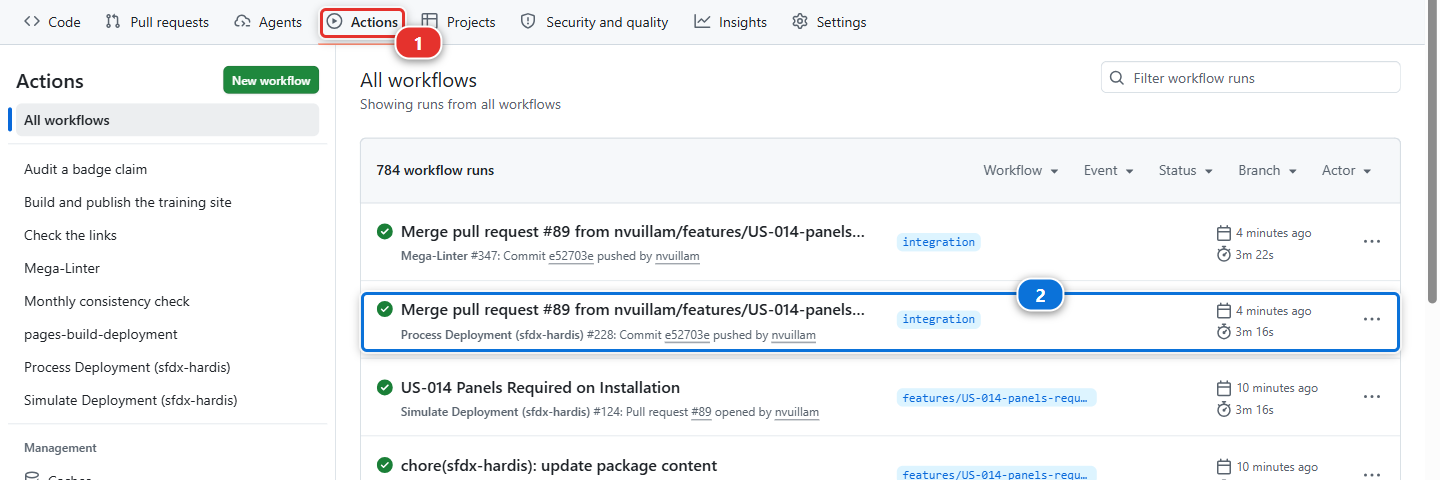
When it finishes, it writes a second comment on the Pull Request you just merged:
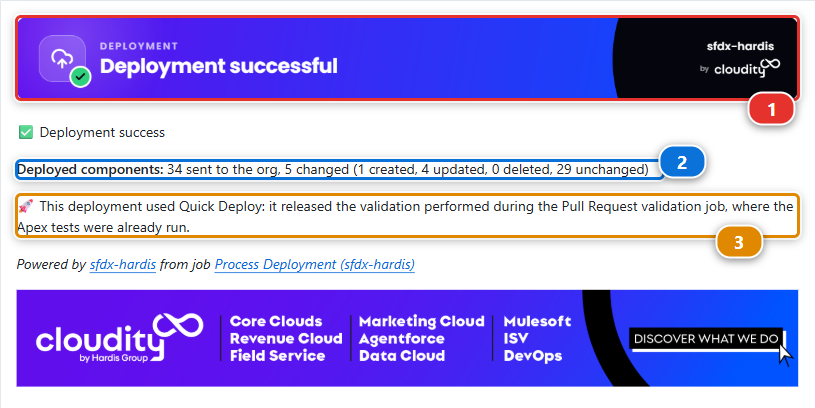
- Deployment successful (1), and this time the org really changed
- What changed (2), in the same shape as the check said it would:
5 changedwhere the check said5 would change - Quick Deploy (3). The merge job did not start from nothing. It released the validation the Pull Request check had already done, which is why it did not run the Apex tests a second time and why it took two minutes rather than five
Then open helios-integration from Orgs Manager and look at an installation.
Panels Required is there. You built it in one org and it arrived in another, and you never
deployed anything by hand.
helios-uat does not have it, and it should not yet. Work moves from integration to uat when a
release manager promotes it, several stories at a time, and that is Level 3.
Under the hood: what the two jobs ran
The Pull Request check ran:
sf hardis:project:deploy:smart --check
--check is a validation deployment: Salesforce compiles everything, runs the tests and
reports what it would do, then throws the result away. Your org is not modified. That is why it is
safe to run on every push.
The job after the merge ran the same command without --check, against the same org. Same
code, same configuration, one flag apart. A check that passes and a deployment that then fails is
rare, and when it happens it is almost always because somebody changed the target org by hand in
between.
Both jobs authenticate first, through the sfdx-hardis hook that reads
SFDX_AUTH_URL_INTEGRATION, the secret Set up my training environment wrote in Lab 1.2. The workflow files are in
.github/workflows/, and they are worth reading once: they are about thirty lines each.
The test level comes from config/.sfdx-hardis.yml:
testLevel: RunLocalTests
apexTestsMinCoverageOrgWide: 80
RunLocalTests runs every test in the org except those from managed packages. 75% is the Salesforce
minimum, and this project asks for 80, like most real ones.
What you should see
- The Pull Request merged, with a green sfdx-hardis comment above the merge
- The Process Deployment (sfdx-hardis) run green in the Actions tab
Panels Requiredpresent on the Installation object inhelios-integration
That is one full delivery loop. Every story for the rest of your life on this project is this loop.
If it goes wrong
The checks never start.
Actions are still disabled on your fork (github.com/my-username/sfdx-hardis-training). Run Training: Level 1 > Set up my training environment
again: it turns them on, and tells you what to click if GitHub will not let it.
The check fails at authentication: No authentication found for org integration.
The secret is missing, misnamed, or truncated. It must be named exactly
SFDX_AUTH_URL_INTEGRATION and its value must start with force://. The quickest repair is
Training: Level 1 > Set up my training environment, which writes it again. Then open the
Checks tab of your Pull Request and click Re-run all jobs.
The check fails with INVALID_CROSS_REFERENCE_KEY on the permission set.
The permission set grants a field that is not in your package. You retrieved the permission set
without the field. Redo Lab 1.5 step 3 and take both.
The check is stuck as "Expected".
The workflow is waiting for a job that will never run, usually because the base of the Pull Request
is the original repository and not your fork (github.com/my-username/sfdx-hardis-training). Close it and open it again with the right base.
The merge box says Merging is blocked, and the button is grey. A required check is still running, or it failed. Wait for it, or open it from the Checks tab, fix what it reports on your branch, and push again: the checks run again on their own. There is no way around it, and there is not meant to be.
The deployment succeeds but the field is not in the org.
Look at the deployed components list in the comment. If the field is not there, it is not in
manifest/package.xml, and Lab 1.5 step 6 is where you read it.
Check your work
Welcome page > Training: Level 1 > Check my work, then pick Lab 1.6.
Go deeper
Next: Lab 1.7 - Capstone: deliver a User Story on your own