Lab 2.3 - Fix broken records with an Apex deployment action
Level: 2 Contributor advanced
Time: ~30 min
You will: hit a failure that no amount of metadata fixing solves, and learn the tool that exists for it: a deployment action.
The situation
US-024 - Crew size becomes mandatory
As a planner, I want Crew Size to be mandatory on every installation, so that no job is scheduled without a crew.
Acceptance criteria:
- Crew Size is required
- Existing records are backfilled with the default of 2
One checkbox in Setup. Then two things happen, and the second one is the one that matters.
The deployment fails, for a reason that has nothing to do with your data. You fix that in a minute. The deployment then goes green, and you have quietly broken thirty installation records for everybody, with nothing anywhere telling you.
This lab is about the gap between a green deployment and a safe one.
Before you start
- Lab 2.2 finished and merged
-
helios-devlevel withintegration
Steps
1. Take the story and do the obvious thing
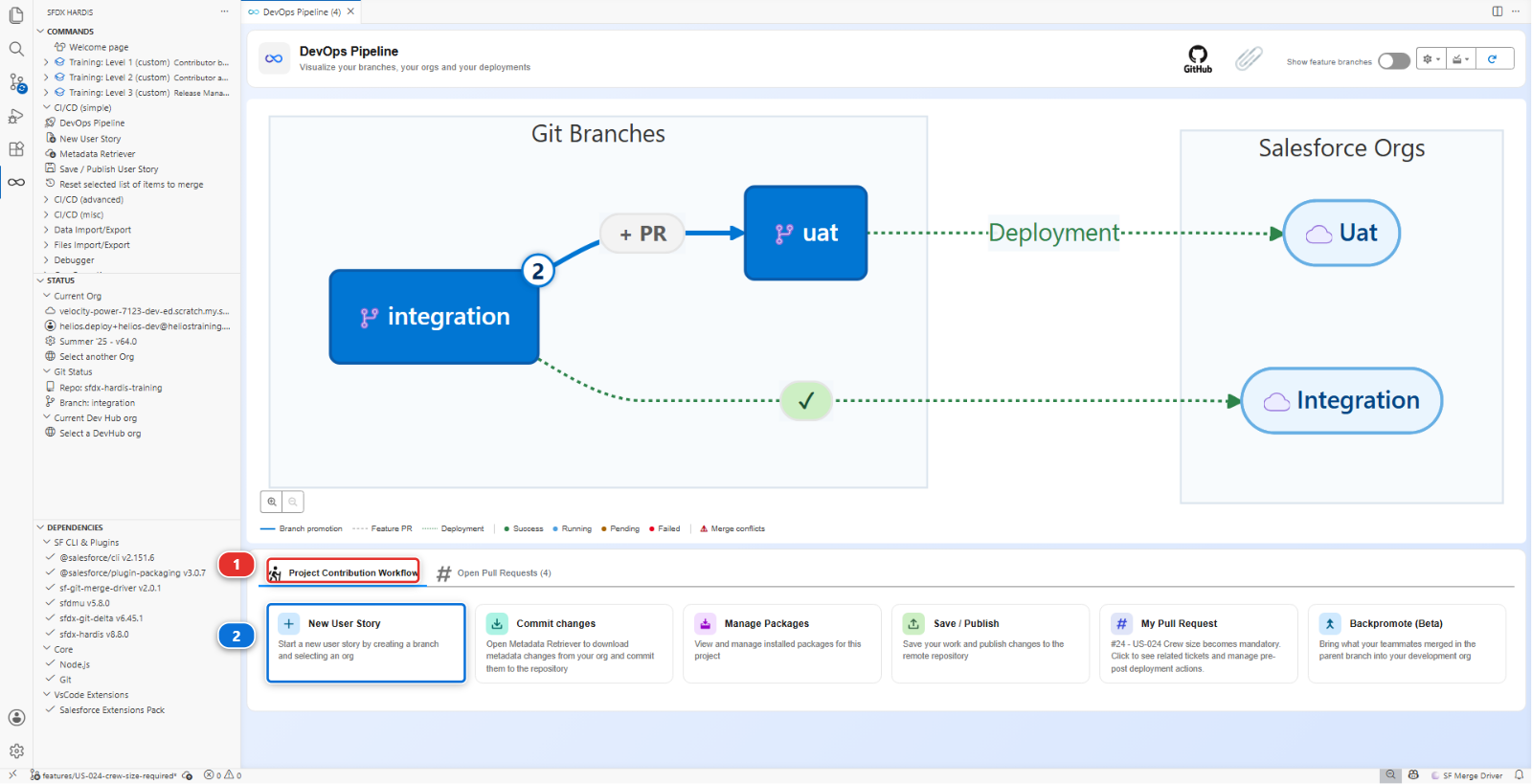
New User Story (2), under Project Contribution Workflow (1) of the DevOps Pipeline
panel. Name US-024-crew-size-required, org helios-dev.
In helios-dev: Setup > Object Manager > Installation > Fields & Relationships > Crew Size >
Edit, tick Required, Save.
Salesforce accepts it without a word, although most installations in your org have no crew size. Remember that: it is the whole of this lab.
Bring the field down with Commit changes (the field, nothing else), commit it, Save / Publish, push, and open the Pull Request.
2. Read the first failure
Helios_Delivery_Crew     You cannot deploy to a required field: Installation__c.Crew_Size__c
Helios_Delivery_Manager  You cannot deploy to a required field: Installation__c.Crew_Size__c
Not a word about your data. The problem is the permission sets.
A universally required field has no field level security to grant: it is visible and mandatory for everyone, by definition. So the moment the field becomes required, every field-level security entry that mentions it becomes invalid, and the deployment refuses the permission sets rather than the field.
The fix takes a minute, and the org has already done it: in helios-dev the entries disappeared
from both permission sets the moment the field became required. Bring them down: Commit changes,
tick Helios_Delivery_Crew and Helios_Delivery_Manager, retrieve. Source Control shows each of
them losing its Crew_Size__c entry and nothing else. Commit, Save / Publish again. The
sfdx-hardis comment even said so, under each error, with a link to the rule.
This is a good error
It is precise, it names both offending components, and the fix is obvious once you know the rule. Most Salesforce deployment errors are like this: they sound like they are about the thing you changed, and they are about something that referenced it.
3. Watch it go green, and understand why that is the problem
The check passes. Do not merge yet.
Open helios-dev, find an installation with no crew size, change anything at all on it, and save.
Salesforce enforces a required field on save, not on the data that is already there. It was
perfectly happy to make the field required while most installations had it empty, and the green
check says the same: helios-integration has thirty installations with no crew size, and the
deployment would make every one of them unsaveable. Not just for you, for everybody, for any edit,
until somebody puts a crew size on them.
Nothing failed. No check went red. Merge now, and the first person to find out is a planner who cannot save a record.
Anything you have to do by hand in one org, you will have to do in every org. That is what a deployment action is for.
4. Split the story into two moves
The shape of the fix, and it is the shape of most "the data is in the way" problems:
- Make the data valid
- Make the field required
Both can travel in the same Pull Request, as long as the first one runs in every org the story reaches. That is what a deployment action is: something the pipeline runs around the deployment, in each org, without anybody opening Setup.
5. Add the backfill
Thirty installations in helios-integration, but a production org can hold millions, and a
deployment action runs in production too. A script that updates every record in one go stops at
the first Salesforce governor limit it meets: 10,000 records updated in one transaction, ten seconds
of processing. So the work goes into a batch, which Salesforce runs in chunks of 200 records,
each in a transaction of its own, whatever the size of the table.
You do not have to write it. From scripts/apex/samples/ in the repository, copy these four files
into force-app/main/default/classes/, in the Explorer, with copy and paste:
CrewSizeBackfillBatch.clsandCrewSizeBackfillBatch.cls-meta.xml: the batch. It gives the default crew of two to every installation that has noneCrewSizeBackfillBatchTest.clsandCrewSizeBackfillBatchTest.cls-meta.xml: its test. Salesforce deploys no Apex without one, and Lab 2.5 is about that gate
Then the script the action runs: create the file scripts/apex/backfill-crew-size.apex and copy
this into it.
// Starts the backfill as a batch: the script returns at once, and Salesforce
// works through the installations without a crew size, 200 at a time.
Id jobId = Database.executeBatch(new CrewSizeBackfillBatch(), 200);
System.debug('Crew size backfill started, batch job ' + jobId);
Two things worth noticing, because they are what makes this safe to run in production:
- The batch only touches records that are actually wrong (
WHERE Crew_Size__c = null) - The script says what it started, so the deployment log is readable afterwards
6. Declare it as a deployment action
Open the DevOps Pipeline panel. There are two ways to your Pull Request, and both land in the same place.
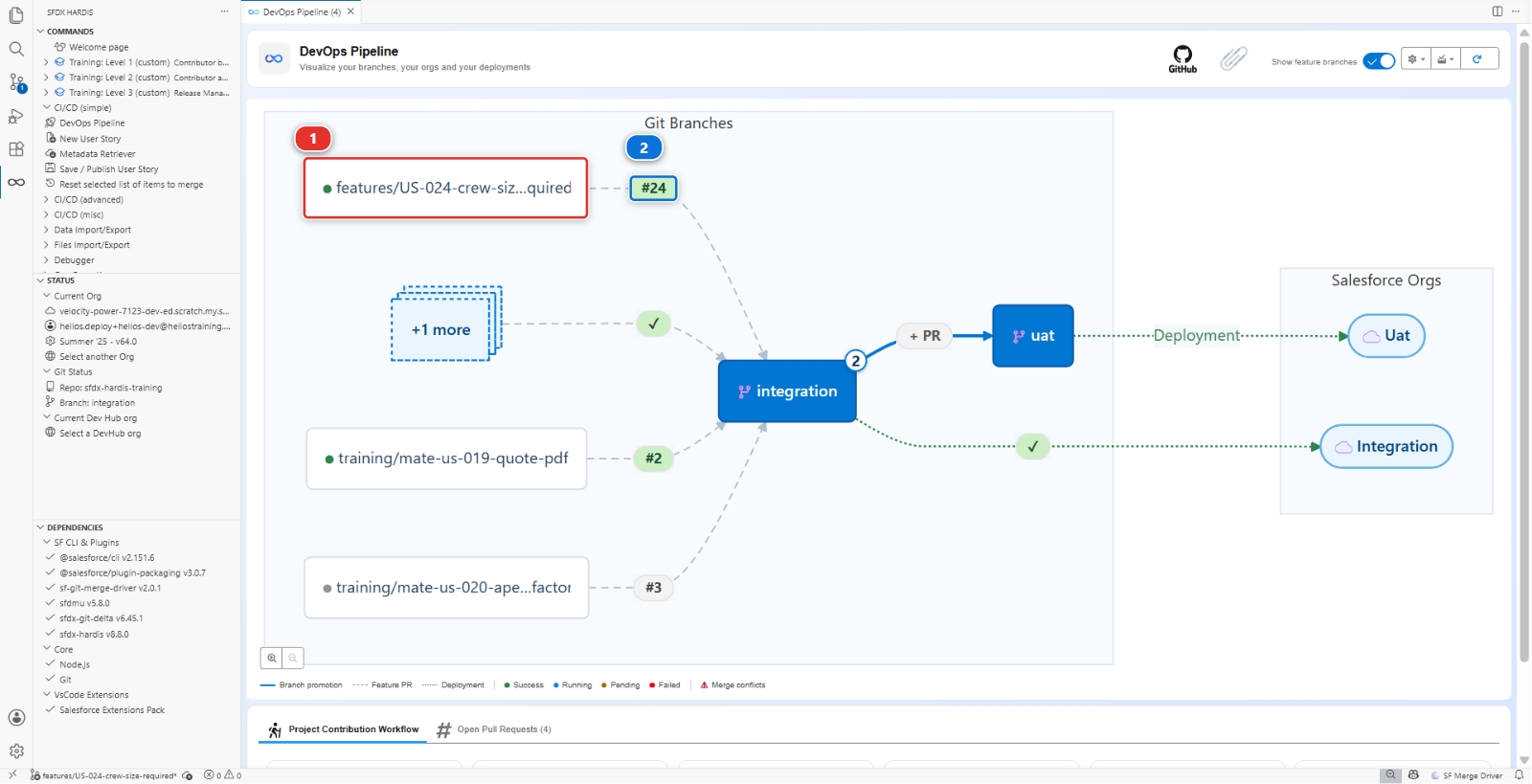
In the diagram: turn on Show feature branches at the top right, which is off until you ask for it, and your own branch appears beside the major ones. Your feature branch (1), and on the arrow leaving it the numbered badge (2). Click the badge.
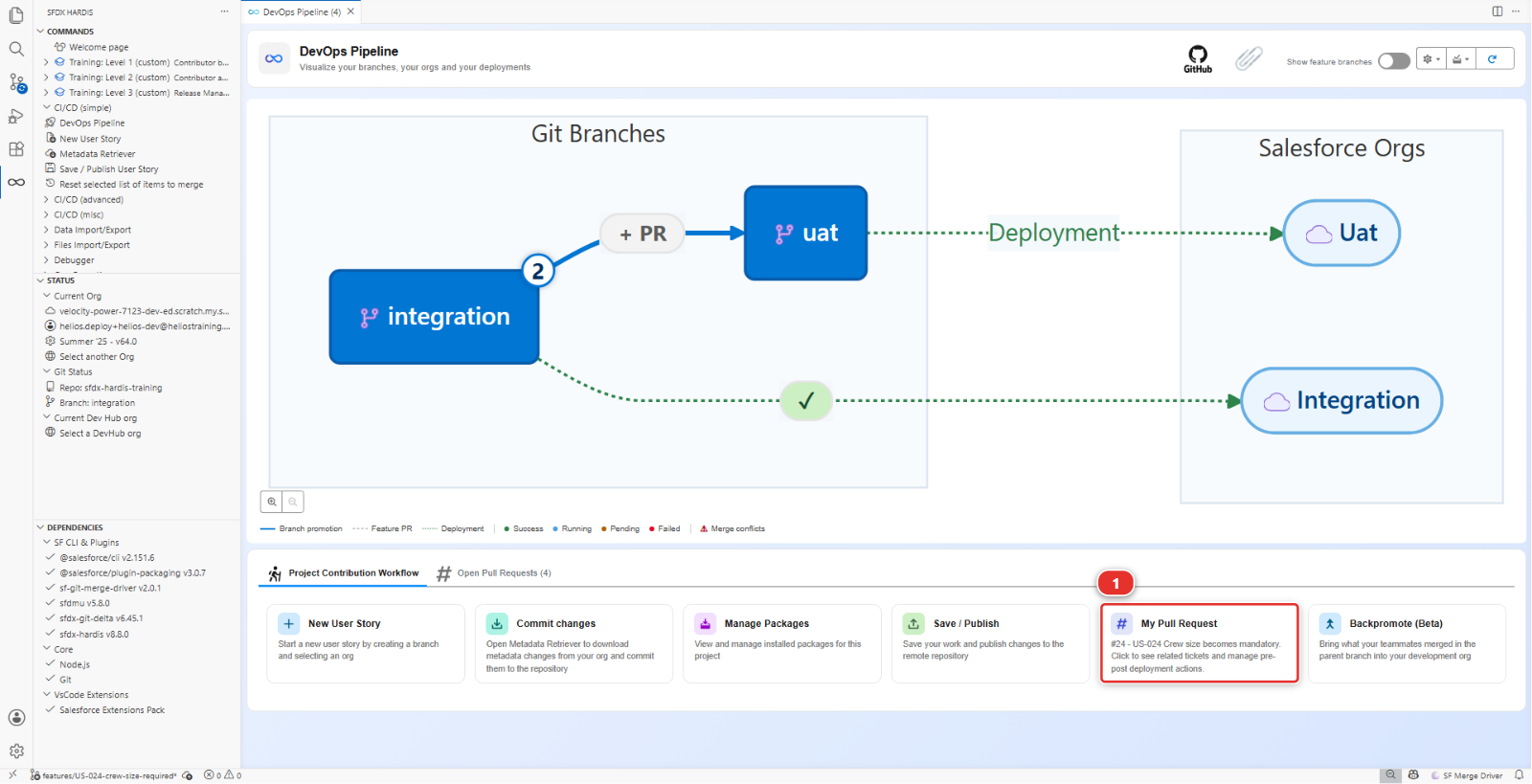
Or scroll to Project Contribution Workflow and click the My Pull Request card (1), which always points at the Pull Request of the branch you are standing on.
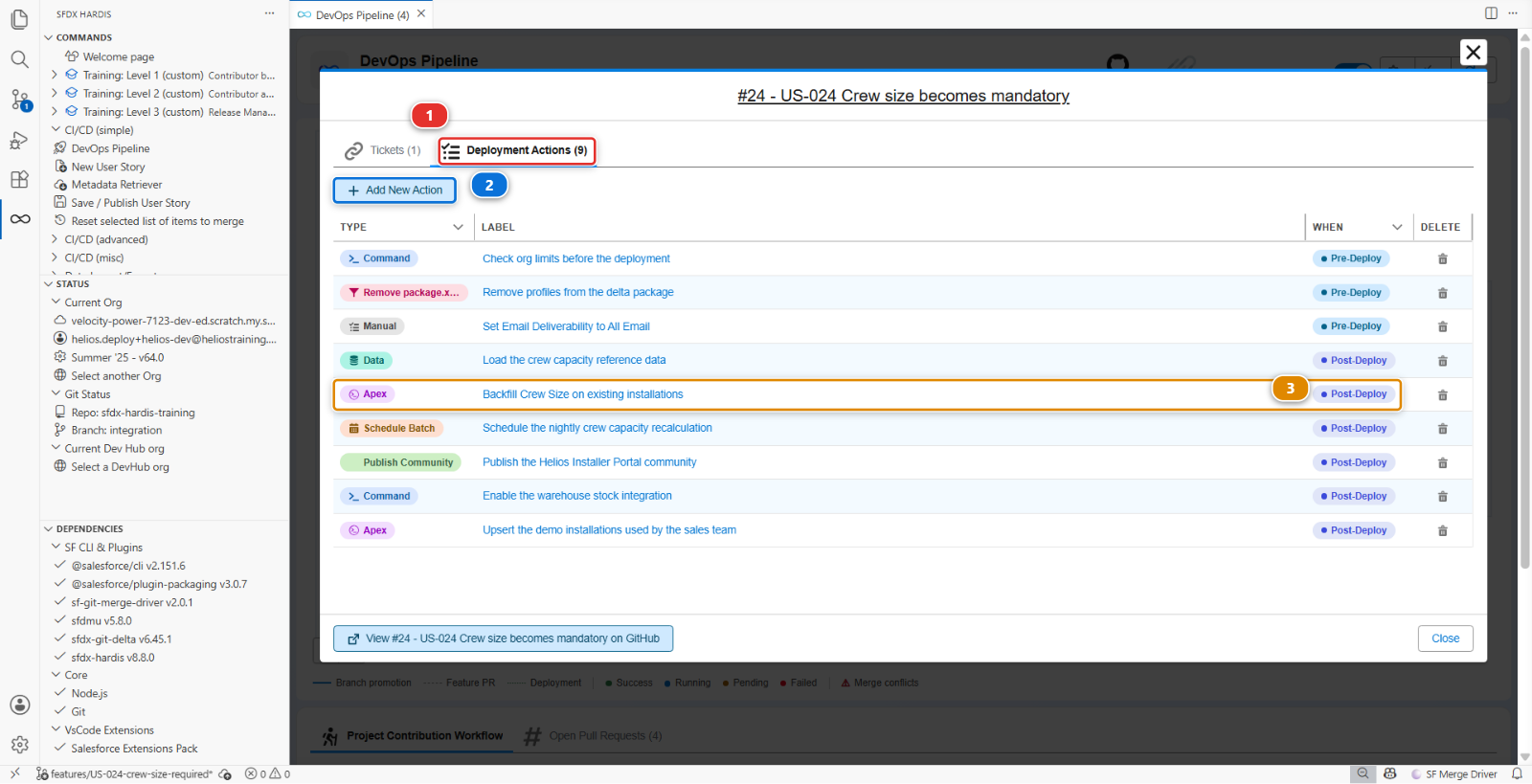
The Pull Request opens. Go to its Deployment Actions tab, click Add New Action, and in the Edit Deployment Action dialog set the Type (1) to Apex.
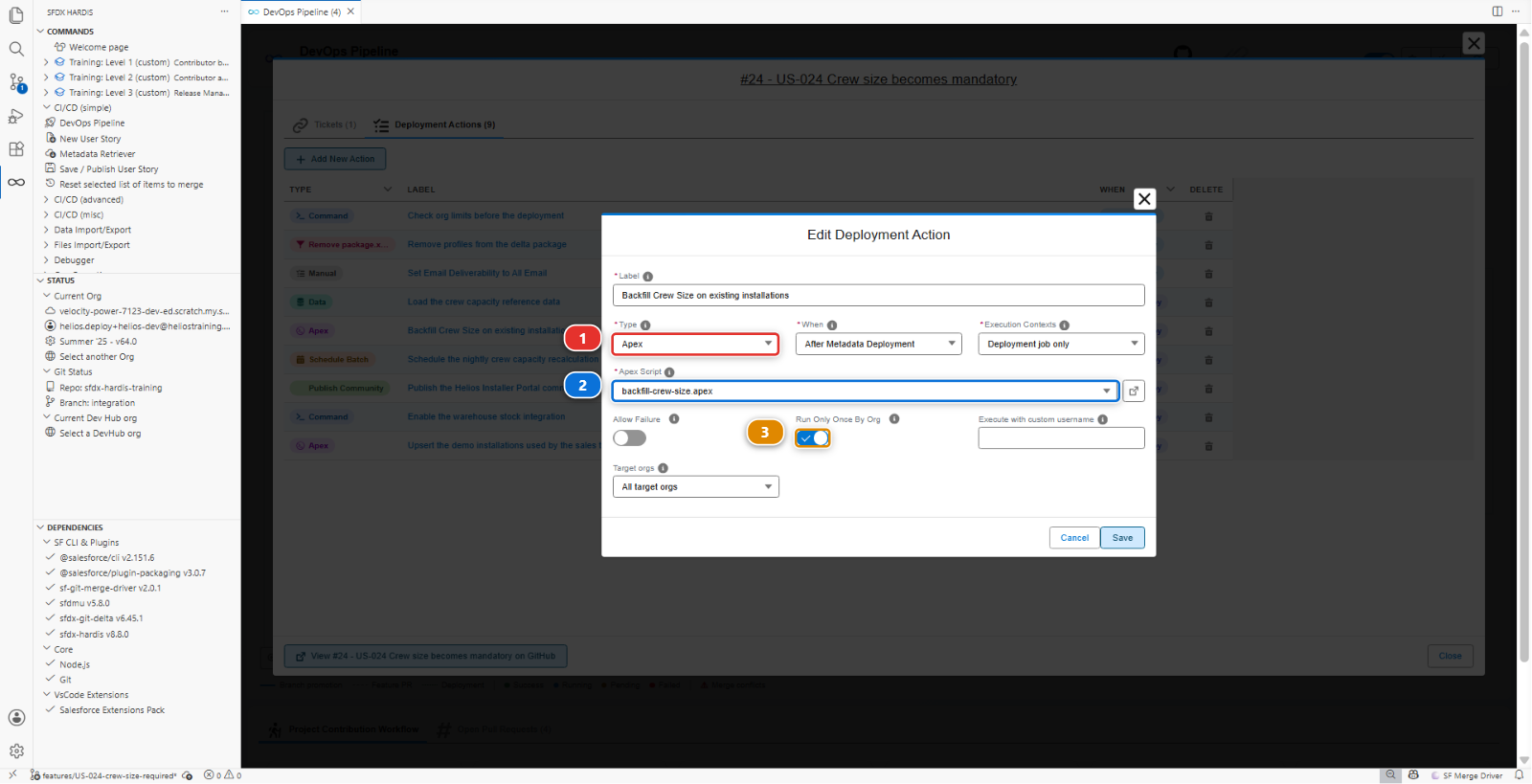
Fill it in:
| Field | Value |
|---|---|
| Label | Backfill Crew Size on existing installations |
| When | After Metadata Deployment |
| Apex Script | backfill-crew-size.apex |
| Execution Contexts | Deployment job only |
| Target orgs | All target orgs |
| Run Only Once By Org | yes |
Apex Script (2) is a dropdown of what it found under scripts/apex/, not a free text path,
so the file has to exist in your branch before it appears. Run Only Once By Org (3) is the
toggle below it.
Deployment job only, because the Pull Request check is a rehearsal: it validates the metadata and changes nothing in the org. A script that updates thirty records does it for real, so it waits for the merge. The check still lists the action in its comment, marked skipped, so the reviewer sees it coming.
Save. The action joins the list on the Deployment Actions tab, whose counter (1) goes up by one. Add New Action (2) stays there for the next one, and your row (3) carries a Post-Deploy chip in the WHEN column.
Run Only Once By Org
Tick it whenever the script is a one-time correction rather than something that should happen on every deployment. sfdx-hardis records what it has run in each org, so the backfill fires once in integration, once in UAT, once in production, and never again. Leave it unticked for a script that does no harm if it runs twice and is meant to run on every deployment.
7. Check the order
The action runs after the deployment, and here that is not a detail. The script starts
CrewSizeBackfillBatch, and that class travels in the very deployment the action goes with: before
the deployment, the target org does not have it, and a script that uses it fails to compile.
For a few minutes after the deployment, the installations without a crew size cannot be saved, as
you saw in helios-dev. Then the batch has given them one. That window is the price of the order,
and on a table of millions it is worth telling the planners about before the release.
How to decide pre or post, every time
Ask what the action needs to already exist. An action that uses a class, an object or a field the story brings is post-deploy: they only exist once the deployment is done, which is this lab and Lab 2.4. Pre-deploy is for what must happen with the org as it was, before anything changes: disabling a scheduled job the deployment would collide with, for instance. The answer is never a habit, it is that question.
8. Commit it, and watch it run
Files wait in Source Control, none of them committed: the four class files and the Apex script
you created in step 5, and the action the editor wrote under scripts/actions/, in a file named
after your Pull Request. Commit them all, then Save / Publish.
The check passes again, and its comment now has a Post-deployment Actions Results table: your backfill, skipped, because this is the validation job. Merge.
The deployment job to integration runs it, for real, right after the deployment: open its log
in the Actions tab and you find the deployment, then the action starting, then the
System.debug line of your script, Crew size backfill started, batch job .... A minute later every
installation in helios-integration carries a crew size, and nobody opened Setup.
helios-dev still has its empty crew sizes, and that is fine: the next backpromote runs the actions
of the Pull Requests it brings down, this one included.
Under the hood: where the action is stored and how it runs
The editor wrote a YAML file named after your Pull Request, under scripts/actions/:
commandsPostDeploy:
  - id: backfill-crew-size
    label: Backfill Crew Size on existing installations
    type: apex
    parameters:
      apexScript: scripts/apex/backfill-crew-size.apex
    context: process-deployment-only
    runOnlyOnceByOrg: true
sf hardis:project:deploy:smart reads it, and around the Salesforce deployment it:
- Collects the actions of every Pull Request included in this deployment
- Runs the
commandsPreDeployones, in order, of which this story has none - Deploys the metadata
- Runs the
commandsPostDeployones - Records in the target org which
runOnlyOnceByOrgactions have already fired, so the next deployment skips them
context decides which jobs run it: all for both the validation job and the deployment job, or
check-deployment-only / process-deployment-only for one of the two. Which orgs it runs in is a
separate pair of keys, includeTargetBranches and excludeTargetBranches. Leave them out and the
action runs against every target, which is what a data correction usually wants. A "reset the
sandbox integration user" script usually names its branches.
Because the actions live in the repository and travel with the Pull Request, the same sequence replays in UAT and in production months later, without anybody remembering it existed. That is the whole value: the knowledge is in the repository, not in someone's head.
What you should see
- The Pull Request comment listing the deployment action it ran, above the deployment result
Crew Sizerequired inhelios-integration, with all thirty installations carrying a value- An installation you can still save, which is the whole point
- No manual step performed by anybody in any org
If it goes wrong
The action does not appear in the Deployment Actions tab.
The panel reads the Pull Request from your fork (your own copy of the course repository on GitHub, for example github.com/my-username/sfdx-hardis-training). If the Pull Request was opened against the original
repository, it cannot see it. Close it and reopen it with the right base.
The Apex script fails with Invalid type: CrewSizeBackfillBatch.
The class is not in the org the script ran in. Either the action runs before the deployment,
when the class does not exist yet, or the class files were not committed with the story.
The deployment still fails on the permission sets.
They still carry fieldPermissions for Installation__c.Crew_Size__c. A required field cannot have
any. Re-publish from an org where the field is already required, or delete the two blocks by hand.
The script ran, and records are still unsaveable a minute later.
The batch is still running, or it failed. In the org, Setup > Apex Jobs lists
CrewSizeBackfillBatch with its status and its errors.
The action ran but nothing changed.
runOnlyOnceByOrg is ticked and it already ran in that org during an earlier attempt. That is
correct behaviour. Untick it temporarily if you need to re-run while experimenting.
Check your work
Welcome page > Training: Level 2 > Check my work, then pick Lab 2.3.
Go deeper
Next: Lab 2.4 - Ship reference data and a batch with deployment actions