Lab 2.2 - Fix a deployment error caused by a missing dependency
Level: 2 Contributor advanced
Time: ~25 min
You will: update a flow that already runs in production, meet your first failing deployment check, read the error properly, and find what your package forgot.
The situation
US-021 - Warn the planner when a crew is too small
As a planner, I want one warning on the installation when the assigned crew is smaller than the panels need, so that I fix it before the van leaves, and not a new task every time I save.
The flow already exists. Installation Crew Warning came with the Helios app when you set up your
orgs in Level 1: it creates a task for the planner whenever fewer than two people are assigned, and
it does so on every save, which is what the planners complain about. You update it, you
publish it, and the check fails with an error about a field that is right there in front of you in
the org.
This lab is about the gap between "it exists in my org" and "it is in the package".
Before you start
- Lab 2.1 finished
-
helios-devlevel withintegration
Steps
1. Take the story
In the DevOps Pipeline panel, under Project Contribution Workflow (1), click New User Story (2), the same card as Lab 1.3.
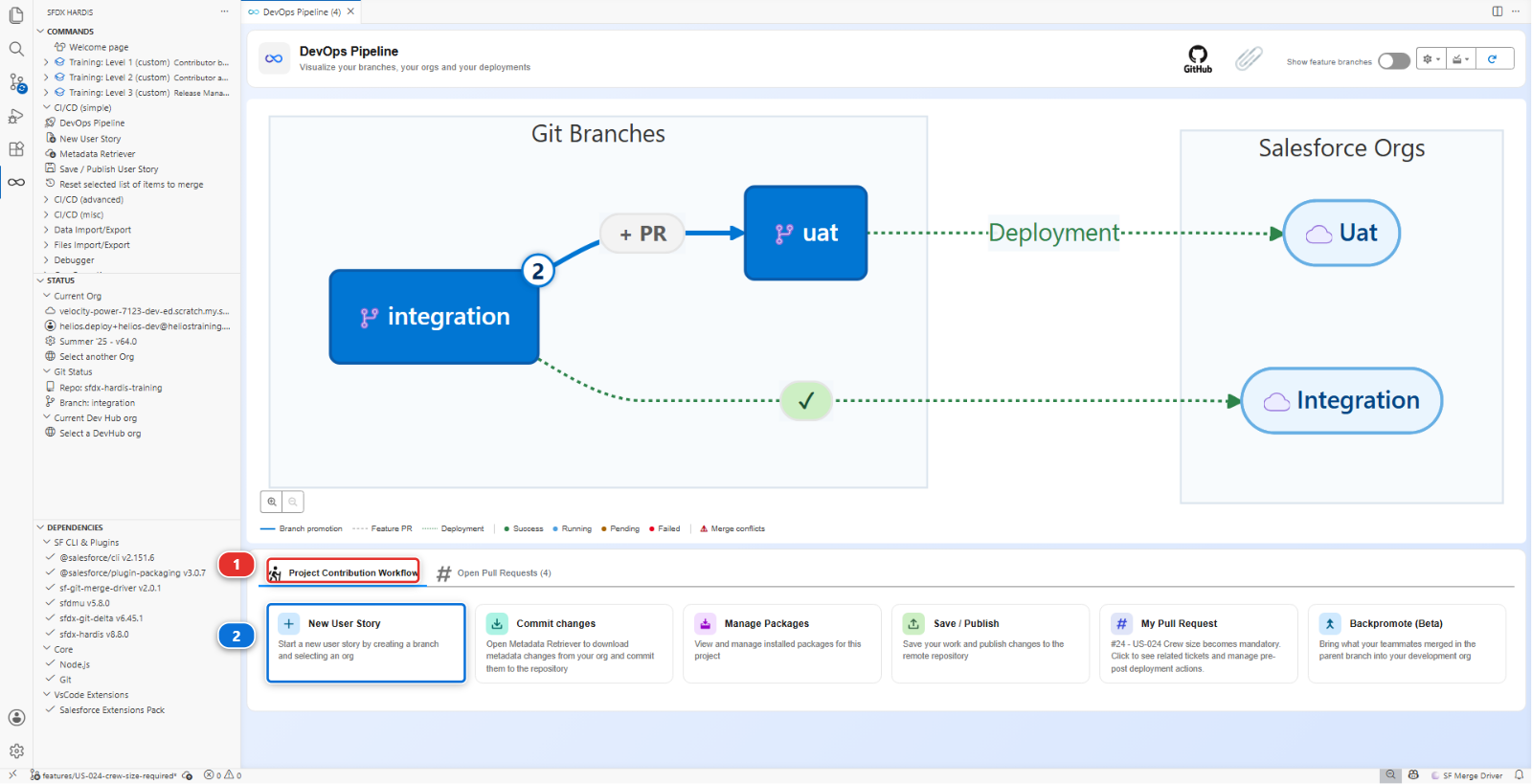
Answer: type Feature, name US-021-crew-size-warning, org helios-dev. The target is
integration without asking, as in Level 1.
2. Update the warning flow
First, the field the flow needs so it does not warn twice. In helios-dev,
Setup > Object Manager > Installation > Fields & Relationships > New:
| Setting | Value |
|---|---|
| Data Type | Checkbox |
| Field Label | Crew Warning Sent |
| Field Name | Crew_Warning_Sent__c |
| Default Value | Unchecked |
Then the flow. Setup > Flows, open Installation Crew Warning. It is active, so Flow Builder opens the running version: every change you make is saved as a new version, and the old one keeps running until you activate yours.
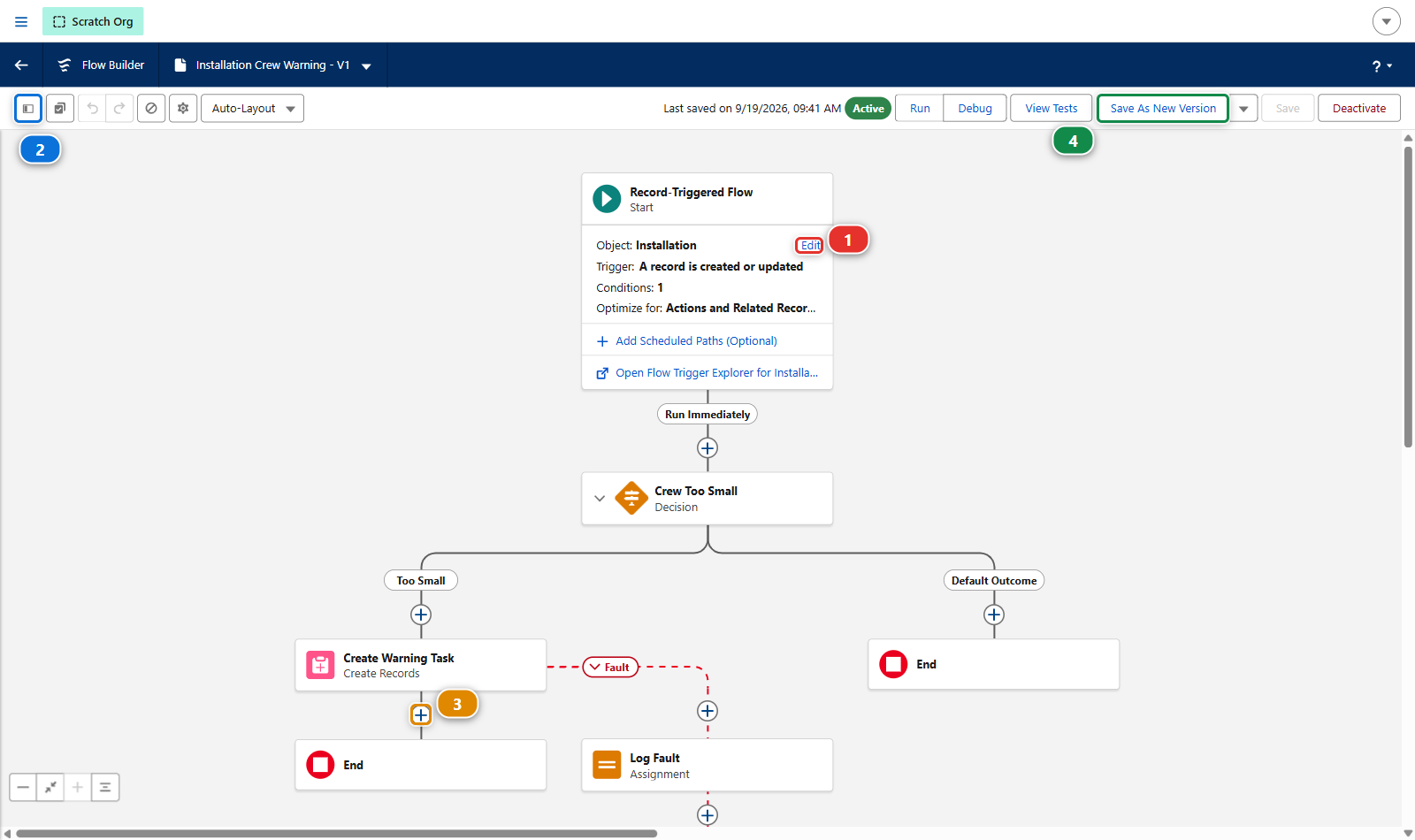
Three changes, and the picture above shows where each one starts:
-
Start element: click Edit (1) on it. Under Set Entry Conditions, the flow already runs when
Crew Sizeis not null (1). Click Add Condition (2) and add the second one,Panels Required, Is Null,False, then Done at the bottom of the panel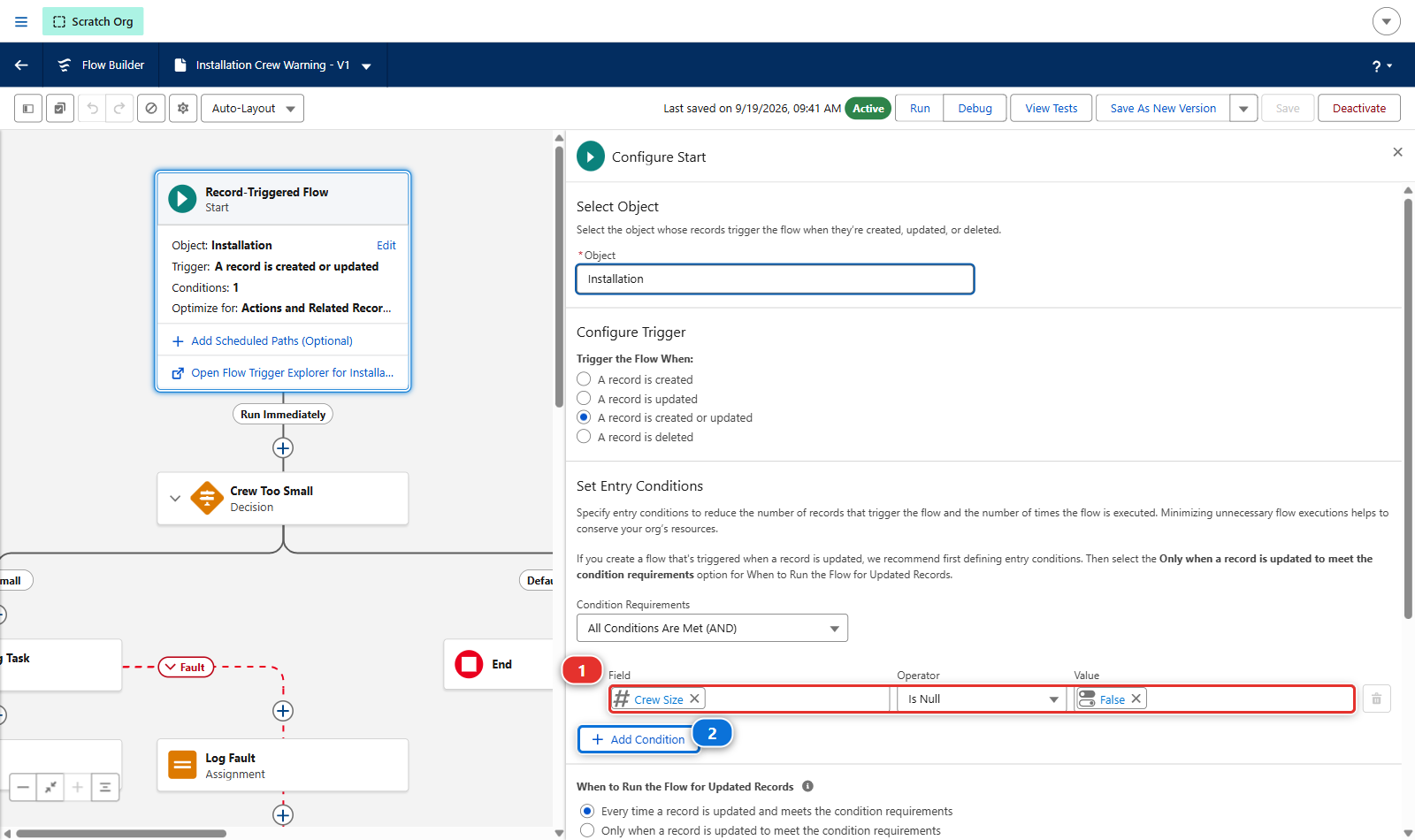
-
The Crew Too Small decision reads a formula resource,
crewTooSmall. Open the Toolbox (2) at the top left of the canvas, and clickcrewTooSmallunder Formulas. Update its Description (1),True when eight panels a person do not cover the job, and no warning was sent yet, and replace its Formula (2) with the one below, then Done (3):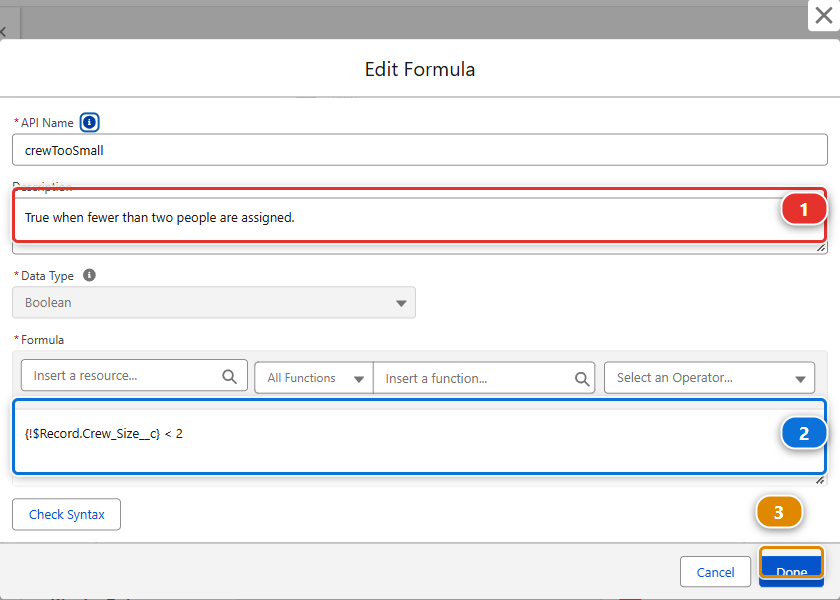
AND(
  {!$Record.Crew_Size__c} * 8 < {!$Record.Panels_Required__c},
  NOT({!$Record.Crew_Warning_Sent__c})
)
One person lays about eight panels a day: the crew is too small when eight panels each do not cover the job, and the warning goes only if it was not sent yet. Copy it rather than typing it 3. After Create Warning Task, click the + (3) on the line below it, and pick Update Triggering Record (1) under Shortcuts. Call the element
Mark Warning Sent, give it a description, and setCrew Warning SenttoTrue. Then connect its fault path to the existingLog Faultelement, like the task element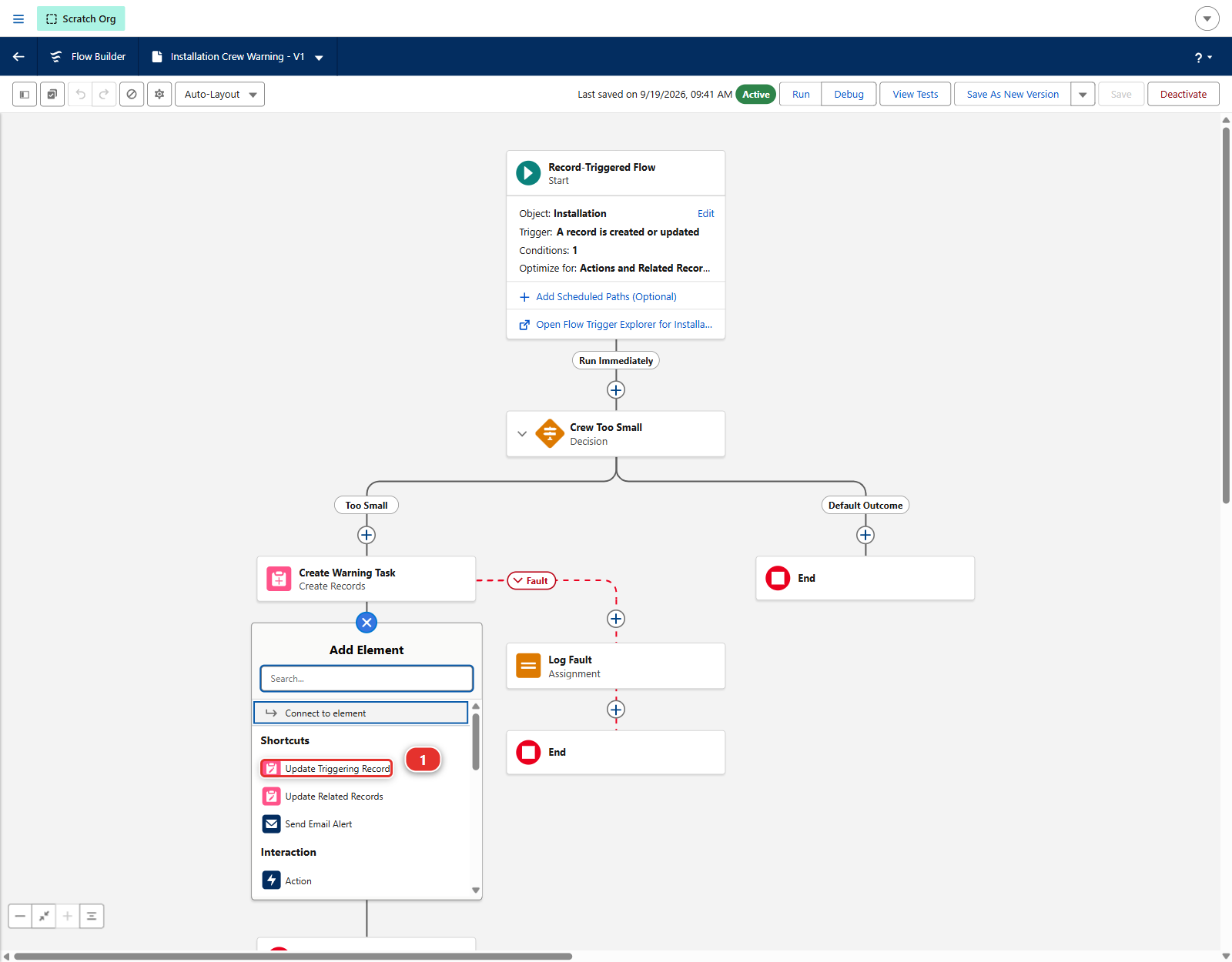
Save As New Version (4), then Activate, the button that replaces Deactivate on the new version.
Why the flow has a fault path at all
A record element without one fails silently: the flow stops, the user sees nothing, and the Task that was supposed to warn the planner never appears. On a real project the fault path sends the message somewhere a person reads. Here it only keeps it, because what the pipeline checks is that a fault path exists. The original flow already had one, and your new element follows it.
Test it: open an installation, set Panels Required to 40 and Crew Size to 2, save. A task
appears in its Activity. Save again: no second task. That is the story working, in your org.
The checkbox itself stays out of sight: no permission set grants it, because nobody but the flow
needs it.
3. Publish the flow, and watch the check fail
Bring it down the way Level 1 taught you: DevOps Pipeline > Commit changes, Recent Changes,
Search Metadata. The story is about the flow, so tick the flow Installation_Crew_Warning,
retrieve it, and commit it from Source Control.
Look at what you did not retrieve
The retriever also listed Installation__c.Crew_Warning_Sent__c, the field you created first.
You left it unticked, and nothing said anything. Carry on and publish anyway: the point of this
lab is to meet the failure that follows, and to learn to read it.
Then Save / Publish (1).
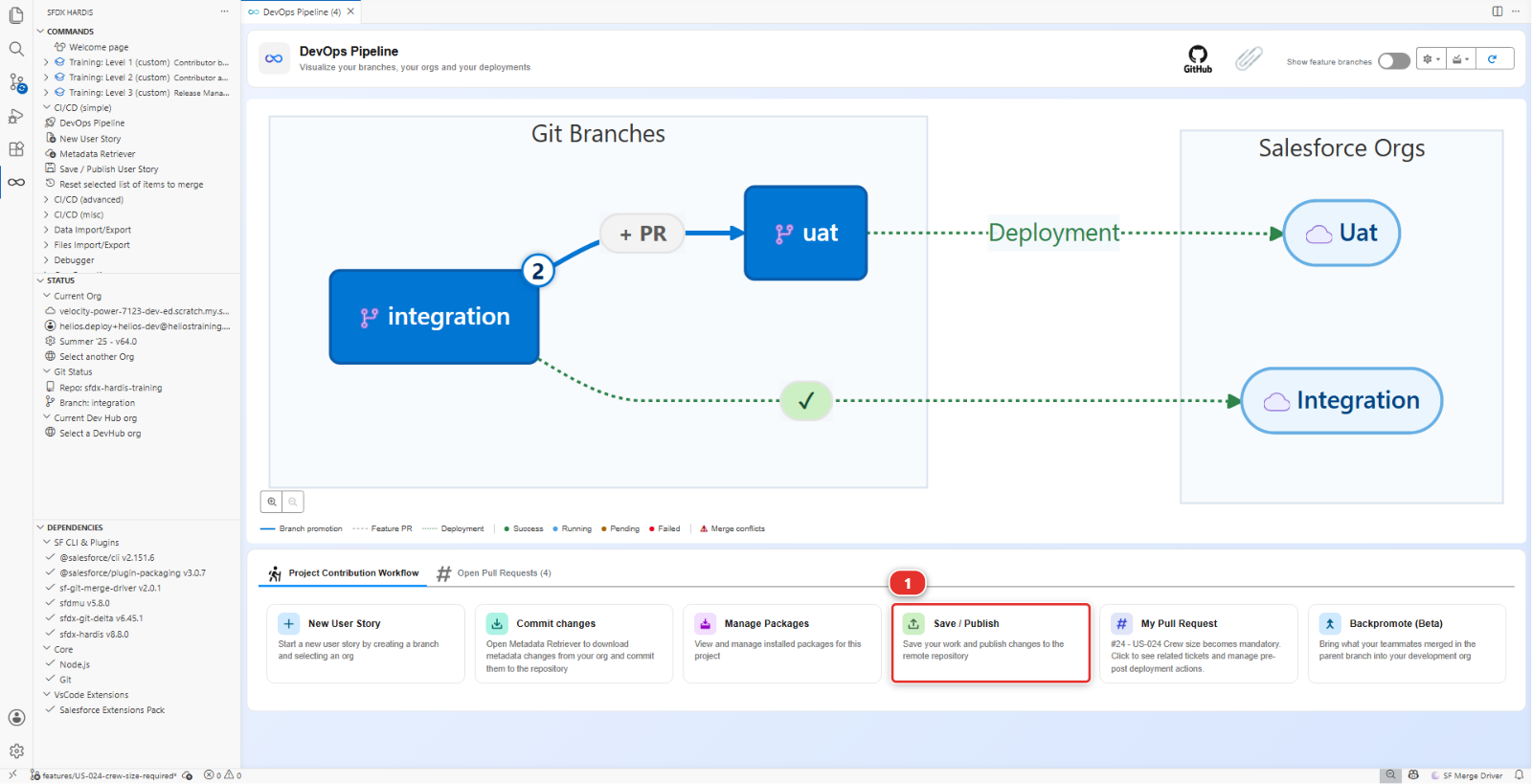
Push, open the Pull Request into integration in your fork (your own copy of the course repository on GitHub, for example github.com/my-username/sfdx-hardis-training), and wait.
The check fails, and the sfdx-hardis comment on the Pull Request names the component under Deployment errors (1):
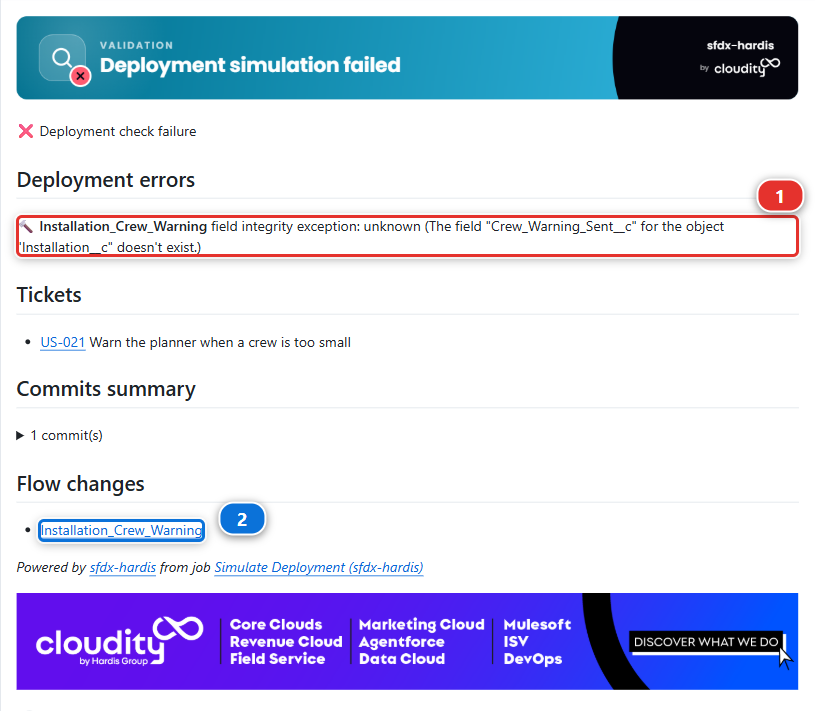
Installation_Crew_Warning field integrity exception: unknown (The field "Crew_Warning_Sent__c"
for the object "Installation__c" doesn't exist.)
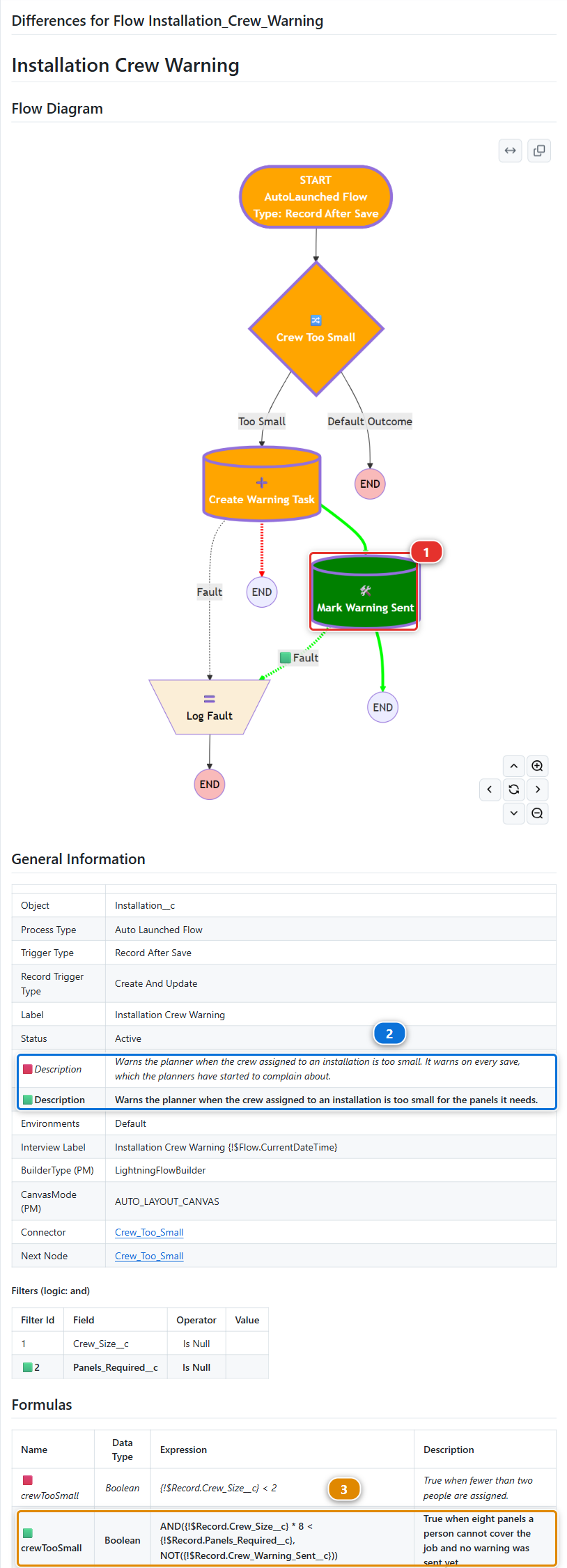
Under Flow changes (2), the comment links to a second comment of its own: the visual diff of the flow. It draws the flow, and colours what your story changed. The new Mark Warning Sent element is green (1), and the tables under the diagram mark every changed property with a red square for the old value and a green one for the new: the description (2), the formula (3). A reviewer reads your flow change there, without opening Flow Builder or its XML.
Your Pull Request cannot be merged while that check is red: integration refuses it, for you as
for anybody.
Read that twice. The field does exist. You can see it in the org. You created it ten minutes ago and the flow you just tested reads it.
4. Read the package before you read anything else
When a deployment says something does not exist, the first question is never "is it in the org". It is "is it in the package".
Open the package: DevOps Pipeline panel, Deployment packages menu, Package XML, as in
Lab 1.5. Type Crew_Warning in its filter box. The Flow row lists your flow. CustomField
does not list Installation__c.Crew_Warning_Sent__c.
The integration org is being sent a flow that reads a field the package does not carry, and the integration org does not have that field either. From Salesforce's point of view the error is exactly right.
The package is built from what your commits changed, and the field was never committed: look where
the fields live, force-app/main/default/objects/Installation__c/fields/, and it is not there. It
exists in one place only, helios-dev, and a pipeline never reads a developer's org.
5. Retrieve what the flow depends on
Open the Metadata Retriever panel:
- Check that the org at the top right (1) is
helios-dev - Type
Crew_Warning_Sent__cinto Metadata Name (2) - Click Search Metadata (3), then tick the field in the results and retrieve it
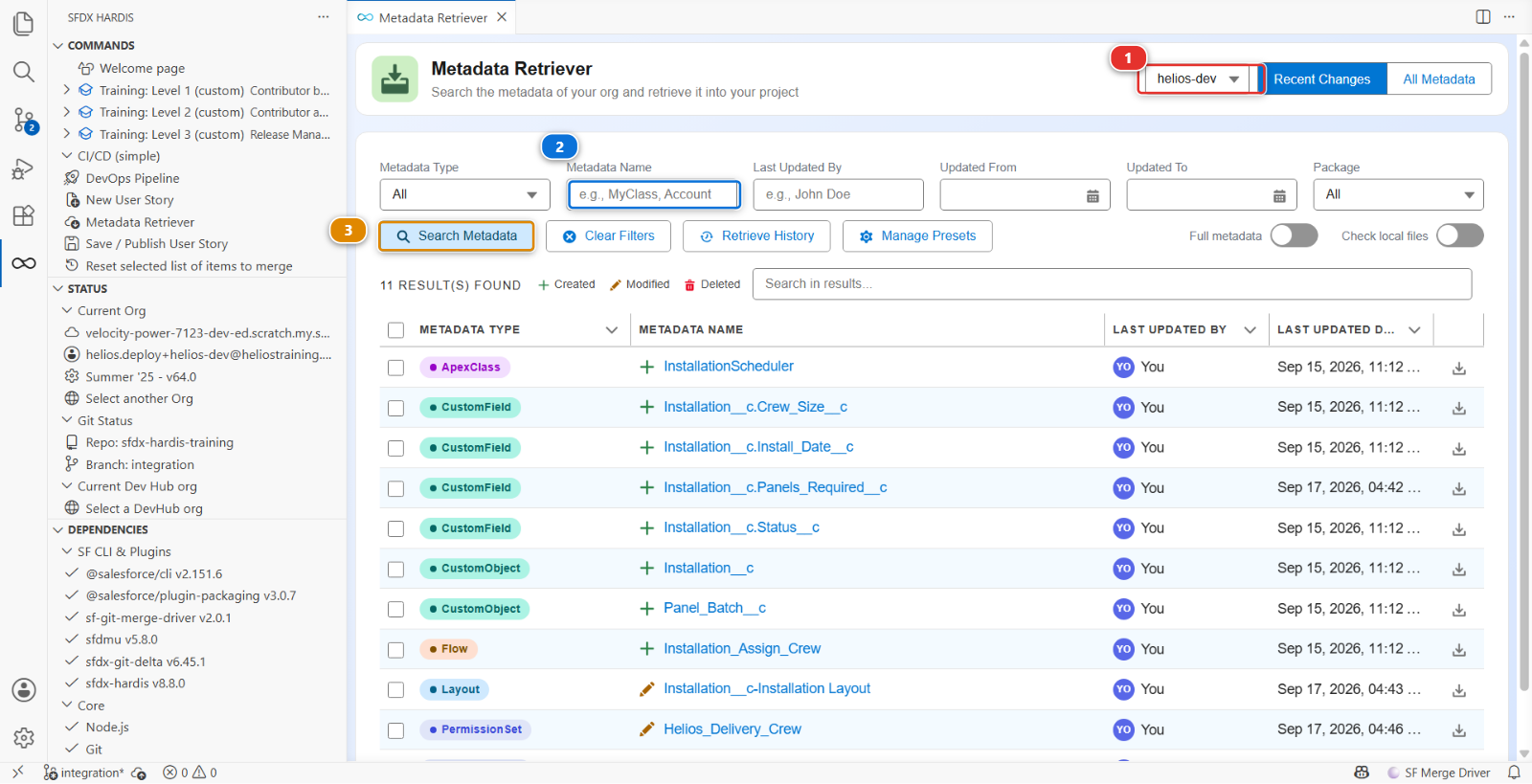
The field appears under force-app/main/default/objects/Installation__c/fields/.
The habit to take away: when you change something that reads another component, retrieve that component too. A flow reads fields, a layout shows them, a permission set grants them. Anything new among them travels with the story, or the story does not deploy.
6. Publish again
The field is in force-app/ now. Commit it from Source Control, then Save / Publish again.
manifest/package.xml lists both the field and the flow. Push, and the check goes green. Merge it.
Under the hood: why the error said what it said
The check job ran:
sf hardis:project:deploy:smart --check
which handed manifest/package.xml to Salesforce as a validation deployment: the list Save /
Publish keeps up to date from the git diff between your branch and integration. Salesforce compiled the flow, looked for
Installation__c.Crew_Warning_Sent__c in the package and in the target org, found it in
neither, and refused.
The important part is the order of the two questions:
- Is it in the package?
manifest/package.xml, and behind it the git diff: what you retrieved and committed - Is it in the target org? Only ask this once the answer to the first is yes
Most deployment errors that say "does not exist" are question 1, and most people spend twenty minutes on question 2 first.
The flow went up as a new version. A flow is versioned in the org: Flow Builder saved yours as
version 2, and the deployment sends its definition. The integration org keeps its version 1 as
history, inactive, exactly like helios-dev does.
What you should see
manifest/package.xmllistingInstallation__c.Crew_Warning_Sent__candInstallation_Crew_Warning- The Pull Request check green
- After the merge, the flow present and active in
helios-integration
If it goes wrong
The retrieve brings nothing.
The org selector of the Metadata Retriever points at another org. It must read helios-dev, where
you created the field.
The check now fails on the flow being inactive. Salesforce will not deploy an active flow over an active flow of the same version in some configurations. Deactivate the old version in the target org, or bump the flow version in your org and retrieve again.
The check fails on a Task field. Your Create Records element sets a field the integration org does not have, because you picked something specific to your org. Simplify: subject and WhatId are enough.
Check your work
Welcome page > Training: Level 2 > Check my work, then pick Lab 2.2.
Go deeper
Next: Lab 2.3 - Fix broken records with an Apex deployment action